

Create a pet portrait from old photos. Scanning tips, resolution guide, and best AI styles for vintage photos. Free preview in 2 minutes at Pet Canvas.
You've got that one photo. Maybe it's a faded 4×6 print from 1997, or a grainy scan your sister sent you years ago. Maybe it's the only image you have of a pet you loved for fifteen years — and you want to turn it into something real. A pet portrait from old photo is absolutely possible. But there are a few things to get right first. This guide walks you through the full process: finding your best source image, scanning it correctly, preparing it for upload, and getting a pet portrait from old photo result that does justice to who your pet was.
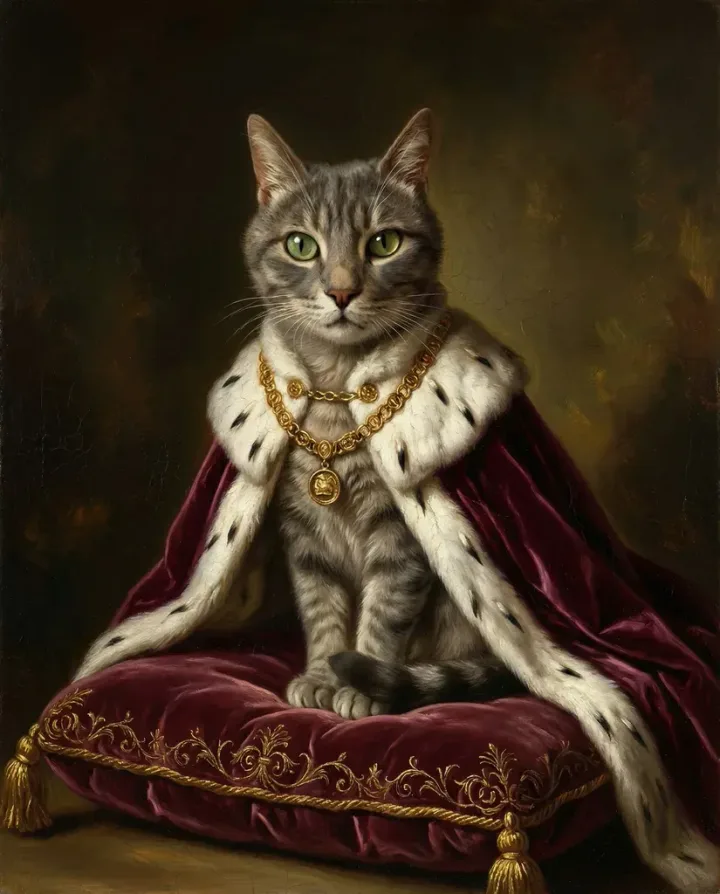
Pet Portrait From Old Photo: Why It Works Better Than You Think
Most people assume their old photo won't work. They look at it — slightly washed out, a bit blurry, contrast gone flat — and assume the AI will produce garbage. That's not really how it works. Honestly, I've seen pet portraits from old photos turn out better than ones from recent phone shots. I was skeptical at first, but the results consistently surprised me.
AI portrait models don't need a perfect photo. They need enough to identify the pet's face: eye position, ear shape, rough fur texture and coloring. A properly scanned 35mm print from 1995 often has more usable detail than a dark, blurry phone photo taken last week. Age matters far less than how you prepare the image.
What actually causes problems: photos where the pet's face is mostly hidden, severe motion blur, or images where the animal is tiny in the frame (a backyard shot where the dog is a small figure in the corner). If you can clearly see the pet's eyes and face, you're probably in workable territory. That's the key. Eye visibility — everything else is secondary.
Finding and Scanning Your Old Pet Photo
Step 1: Find the Best Photo You Have
Before touching any scanner or editing tool, spend time hunting for the best source image. People often scan the first photo they find rather than the best one. Not ideal.
Check physical albums, shoeboxes, old holiday cards, and framed prints on walls. Ask family members — they may have photos you've never seen. Old Facebook albums from 2009–2014 can work if the original was uploaded at full size. Don't rely on heavily-compressed downloads. And honestly, wall-framed prints often go unnoticed as a source.
When choosing between options, prioritize:
- Face forward or three-quarter angle (not looking directly away from camera)
- Natural daylight lighting — harsh flash is workable, dark indoor shots are harder
- As little motion blur as possible — a sharp photo of a resting pet beats a blurry action shot
- The pet filling a reasonable portion of the frame
Physical Prints vs. Negatives vs. Slides
If you have film negatives or slides, those can actually be better source material than the prints made from them. Film holds a lot of detail that doesn't always survive printing. A flatbed scanner with a transparency adapter can pull that detail out. No adapter? Many local print shops offer negative scanning at fair prices.
Standard glossy 4×6 prints are the most common and perfectly workable. Matte prints sometimes scan with slightly less contrast — but still fine. Wallet-size photos are the trickiest (small size means you'll need very high DPI to compensate), but they can still yield a solid pet portrait from old photo if scanned with care.
Step 2: Scan or Digitize the Photo Correctly
This is where most people lose quality they didn't have to lose. A quick phone photo taken at an angle, under harsh light, with glare covering one eye — that's an avoidable problem. Spend the extra ten minutes here. It makes a real difference for your pet portrait from old photo result.
Using a Flatbed Scanner (Best Option)
A flatbed scanner is the most reliable method for digitizing printed photos. Libraries, print shops, and offices often have them. Settings to use:
- Resolution: 600 DPI for standard 4×6 prints. 1200 DPI for anything smaller than 4×4 inches (wallet photos, etc.). 300 DPI is acceptable only if the original print is 8×10 or larger.
- Color mode: Color — even for black-and-white prints. Color mode captures more tonal range.
- File format: TIFF for maximum quality. JPEG at 90%+ quality is fine for AI portrait purposes.
- Auto-correction: off. Turn off any automatic enhancement or color correction in the scanner software. You want the raw data, not a pre-processed version.
One thing people forget: clean the scanner glass before you start. Dust and fingerprints get captured as part of the image.
Photographing Prints With a Phone
No scanner available? A modern phone camera in good light can work — but technique matters a lot more than it does with a scanner. And more people get this wrong than right.
Place the print on a flat surface. Use indirect natural light from a window — not direct sun, which creates hot spots. Position the phone directly above the photo, perfectly parallel. Even a slight angle creates distortion. Use the highest resolution mode your camera offers.
Apps like Microsoft Lens or Google PhotoScan include auto perspective correction and glare reduction. Both are genuinely helpful for shooting prints.
| Method | Detail Quality | Glare Control | Ease | Best For |
|---|---|---|---|---|
| Flatbed scanner | Excellent (600–1200 DPI) | Excellent (closed lid) | Moderate | Most reliable results overall |
| Phone camera | Good (modern phones) | Requires care | Easy | Quick digitization in good light |
| Professional service | Excellent | Excellent | Hands-off | Precious, fragile, or damaged originals |
| Method | Quality | Cost | Best For |
|---|---|---|---|
| Flatbed scanner | Excellent — 600–1200 DPI with no glare | Free (library/office) or ~$80–150 to buy | Most reliable results; best for standard 4×6 prints |
| Phone camera app (Lens, PhotoScan) | Good — I've tried both methods and in my experience, the phone scan works surprisingly well in good light | Free | Quick digitization when no scanner is available |
| Professional scan service | Excellent — handled by trained technicians | $1–5 per photo at most print shops | Precious, fragile, or physically damaged originals |
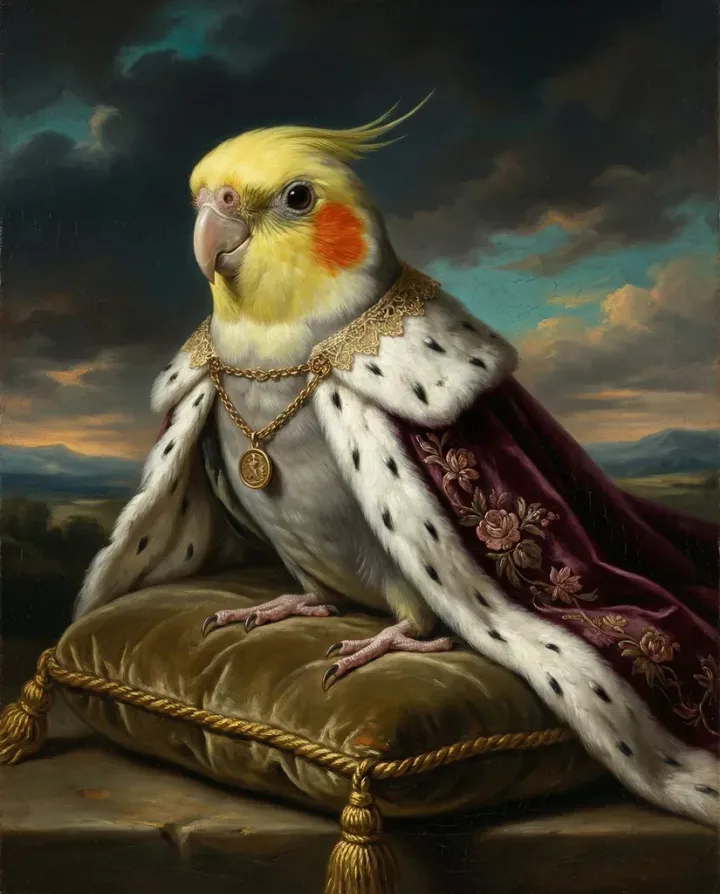
Step 3: Prepare the Digital Image
Once you have a digital file, look at it honestly. Is the contrast flat? Does it have a yellow-brown cast from aging? Is the pet small in the frame? A few simple adjustments can improve what the AI reads from the image — and that leads directly to a better pet portrait from old photo result.
You don't need Photoshop. Free browser-based tools like Photopea, or even the built-in editors in Windows Photos or Apple Photos, handle these adjustments fine. Simple tools. Big difference.
Useful adjustments for old photos:
- Crop tight to the face. If the pet takes up a small portion of the frame, crop so they fill at least 60% of the image. This is the single most impactful thing you can do.
- Brightness and contrast. Gently lift shadows and add contrast — brings out detail that gets lost in flat images.
- Color correction. Old photos often skew warm (yellow-orange). A slight cooling adjustment helps the AI read accurate fur colors.
- Light sharpening. A small amount can help, but oversharpening looks artificial and can confuse the model.
What to leave alone: don't run heavy AI upscalers before uploading. Some upscalers introduce artifacts the portrait AI doesn't expect. The model at create.petcanvas.art is built to handle real photo flaws — it doesn't need a pre-processed version. One round of careful editing is fine. A chain of tools usually backfires. Two steps at most.
Step 4: Upload and Choose Your Style
Head to create.petcanvas.art and upload your prepared image. The whole process happens online — no software to download or install. The platform accepts JPG, PNG, and WEBP. Standard JPEG from a scanner is fine.
After uploading, you choose a portrait style. For memorial portraits — which is honestly the main reason most people search for a pet portrait from old photo — a few styles work especially well with older photos:
Royal Velvet — rich, warm oil-painting feel. Forgiving of lower contrast originals because the style itself is high-contrast and warm-toned. A good default choice for dogs and cats with warm-colored fur.
Caravaggio Twilight — dramatic chiaroscuro lighting with dark backgrounds. Especially forgiving because it remaps lighting entirely — a low-contrast source doesn't translate to a low-contrast portrait. Very moving for memorial pieces.
Pastel Nobility — softer, gentler aesthetic. Good if the feeling you want is tender rather than majestic.
Intelligent — high-detail rendering that can pull out features the other styles miss. Worth trying if you have a better source. Even with tough photos, it's worth a test.
Browse all six styles at petcanvas.art/pets — each has quite different visual energy, and it's worth looking at examples before choosing.
Review, Order, and Display Your Pet Portrait From Old Photo
Step 5: Review the Free Preview and Adjust
Within about two minutes, you'll have a free watermarked preview generated entirely online. This is your chance to evaluate before committing to anything. No payment. No pressure.
What to check: Does the face look like your pet — not just a generic version of their breed, but specifically them? Is the fur detail clear, or does it look smeared? Smeared fur usually means the source was too blurry. Does the style feel right for what you're making?
If the likeness feels off, try again with a tighter crop. A slightly different framing can produce noticeably different results. The preview is free. You can test multiple versions before spending anything. That's honestly one of the best things about this process.
And the before-and-after contrast is pretty striking. What starts as a washed-out 4×6 becomes a rich, detailed piece of art.
| Can Do | Can't Do |
|---|---|
| Work with faded, low-contrast prints | Reconstruct a face that's mostly obscured |
| Handle film grain and mild blur | Fix severe motion blur where features are unrecognizable |
| Interpret coloring from a yellowed or faded print | Determine exact colors from a black-and-white photo without context |
| Create beautiful art from an imperfect source | Guarantee exact reproduction of very specific markings |
| Work with well-scanned wallet-size photos | Work with tiny, pixelated screenshots of old photos |
One thing worth saying plainly: the AI is interpreting your photo, not cloning it. If your pet had a very specific marking — a patch over one eye, a particular scar — it may not appear the same in every output. The portrait is an artistic take on the image. Most people find this is exactly what makes it feel like art rather than a copy. But if you need a precise likeness, the human artists at petcanvas.art (operating since 2018) offer unlimited revisions and work directly from your reference. Worth knowing that option exists.
Step 6: Choose Your Format and Order
Once you're happy with the preview, you choose the format. Full details at petcanvas.art/pricing:
- Digital download — $12.99. High-resolution digital file without watermark. Good for digital frames, sharing with family, or printing locally.
- Poster print — from $29.99. Professionally printed and shipped. Good for framing at home.
- Canvas print — from $79.99. Gallery-wrapped canvas with the texture and weight of a traditional portrait. This is what most people choose for a memorial piece.
For a memorial portrait, the canvas option tends to mean the most. It's physical. The texture, the weight, the way it catches light — a digital file can't match that. Canvas sizing and framing details are at petcanvas.art/format.
One practical tip: if you're unsure which style to commit to, order the digital download first at $12.99. It lets you see the full, unwatermarked result before spending more on print. You can always order a canvas afterward using the same image. Low-risk way to test.
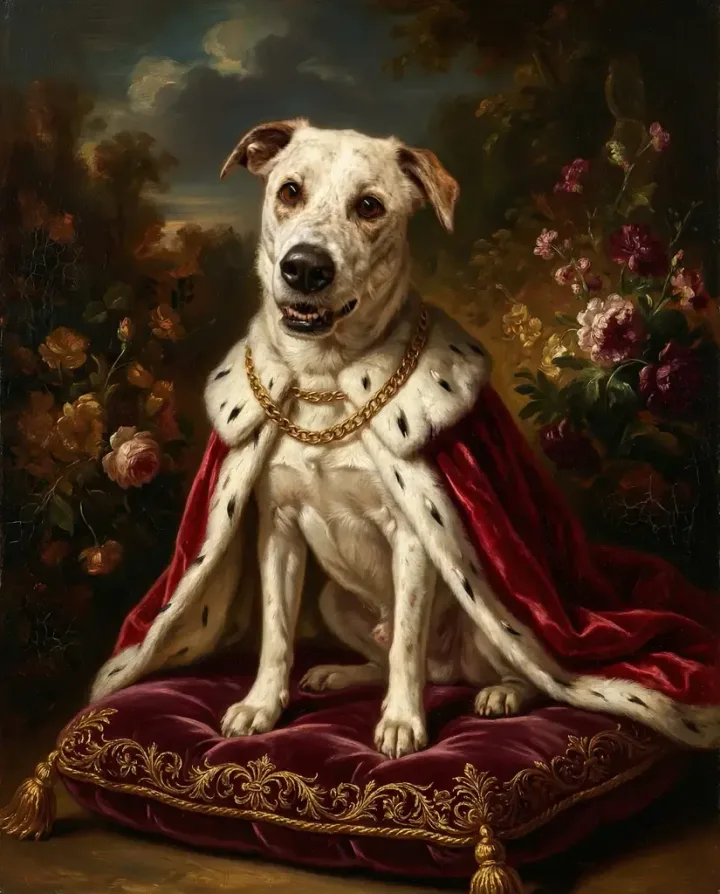
When the Photo Is Really Struggling
Sometimes the only photo you have is genuinely tough. A group photo where the pet is small in the frame. A heavily compressed Facebook download from 2010. A photo that was a photocopy of a photocopy. In those cases, be honest about what to expect. Not every old photo will give you a clean result — and that's okay.
If the image is under 300×300 pixels, or the pet's face is smaller than about 100–150 pixels across, the result becomes unpredictable. The AI might produce a plausible dog or cat of the right general type, but not clearly your specific animal. That's the ceiling for damaged or tiny photos.
But there are options beyond "hope for the best." You can try AI upscaling tools (Topaz Gigapixel, Let's Enhance, or similar) before uploading — one round on a tiny image can help, unlike the over-processing issue mentioned earlier. You can also contact the human-artist team at petcanvas.art, who can work from multiple reference photos or a written description of your pet's key features. The guide on choosing the best photo for a pet portrait covers minimum quality thresholds in practice.
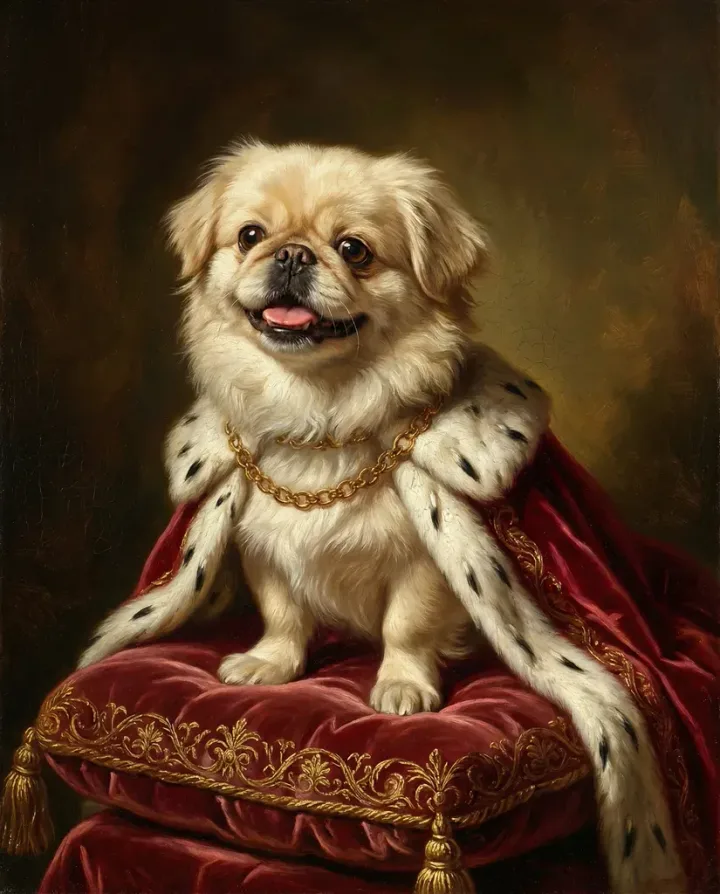
More Resources
If you're creating a portrait as part of honoring a pet who has passed, the pet memorial portrait guide goes deeper into the emotional and practical considerations. For a full overview of custom portrait options — including what to look for in any portrait service, AI or otherwise — the custom pet portrait guide covers the whole landscape.
FAQ: Pet Portrait from Old Photo
What's the minimum photo resolution that will work?
Around 800×800 pixels with a clearly visible face is a practical minimum for digital files. For scanned prints, 600 DPI on a 4×6 photo gives you plenty to work with. Below these thresholds, results become unpredictable — but the free preview at create.petcanvas.art lets you test your specific photo before committing to anything.
Can I use a black-and-white photo?
Yes. The AI reads tonal values and makes reasonable assumptions about fur color based on breed context and shading. The portrait will be full-color, which is what most people want from a memorial piece. If your pet had very specific coloring that matters to you, describe it in the optional notes field when uploading.
What if the photo has physical damage — tears, water stains, fading?
Minor damage away from the pet's face usually doesn't affect results. Heavy fading across the whole image is harder, but basic contrast adjustment before uploading often helps. Damage directly over the pet's face is the toughest case — try the free preview to see how the AI handles your photo before making any decisions.
How long does the whole process take?
The preview generates in about two minutes. Digital downloads are immediate after you order. Canvas and poster prints typically ship within a few business days — full timeline details are on the pricing page.
Can I use a photo from a shelter, rescue, or previous owner?
Technically the platform accepts any image you upload, but if the photo belongs to someone else — a rescue org, a pro photographer — it's worth getting their permission first, especially if you're ordering a printed product.
What if I don't love the first result?
The preview is free, so you can try different styles or a different crop of the source photo without any cost. Different crops and different styles can produce noticeably different results from the same source image — it's worth experimenting. You only pay when you find something you love.
Turn Your Pet Into Art
Upload your pet photo, choose from dozens of artistic styles, and get a stunning portrait in minutes.
Create Your PortraitFree preview — try before you buy